Connection settings
Before configuring connections, you have to add network devices.
Adding patch panels
Visit the Connections menu item.
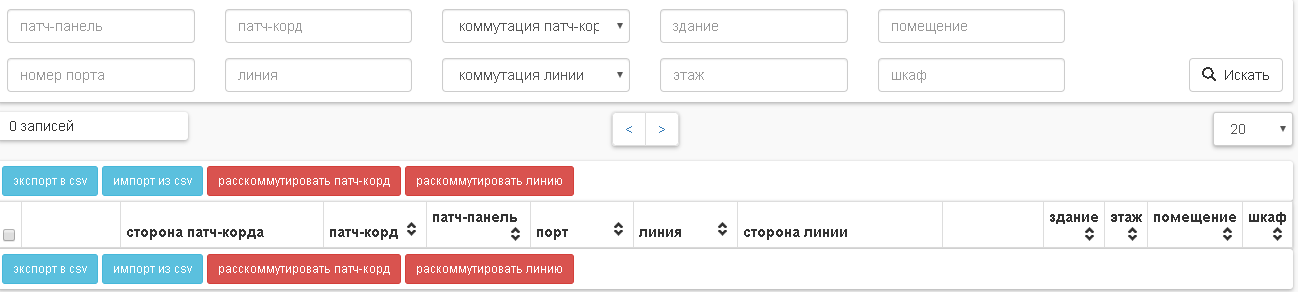
Click the add button. Fill the fields and click the save button.
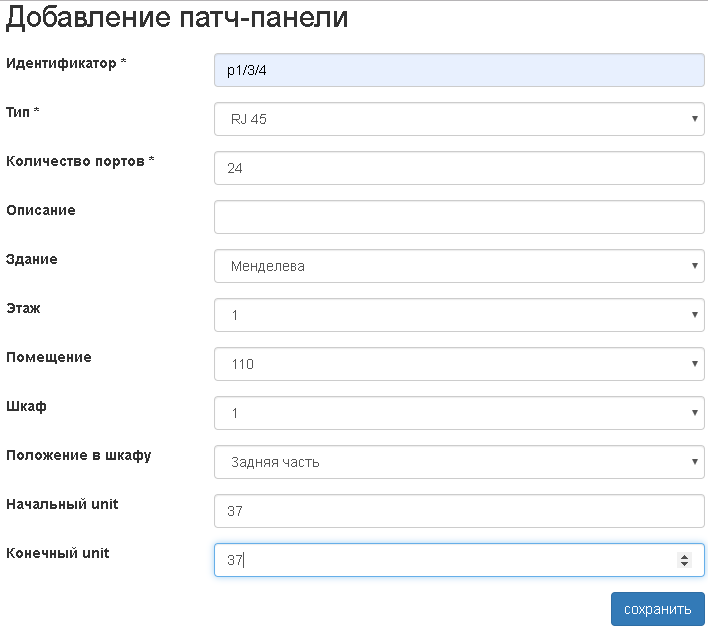
- Identifier
Unique patch bar Identifier.
- Type
Patch panel type
- Number of ports
Number of ports/
- Description
Description.
- Building
The building where the patch panel is located.
- Floor
The floor where the patch panel is located.
- Room
The room where the patch panel is located.
- Rack
The rack where the patch panel is located.
- Location in rack
Location in rack.
- Start unit
Start unit.
- End unit
End unit.
Perform point 2 for the required number of patch panels.
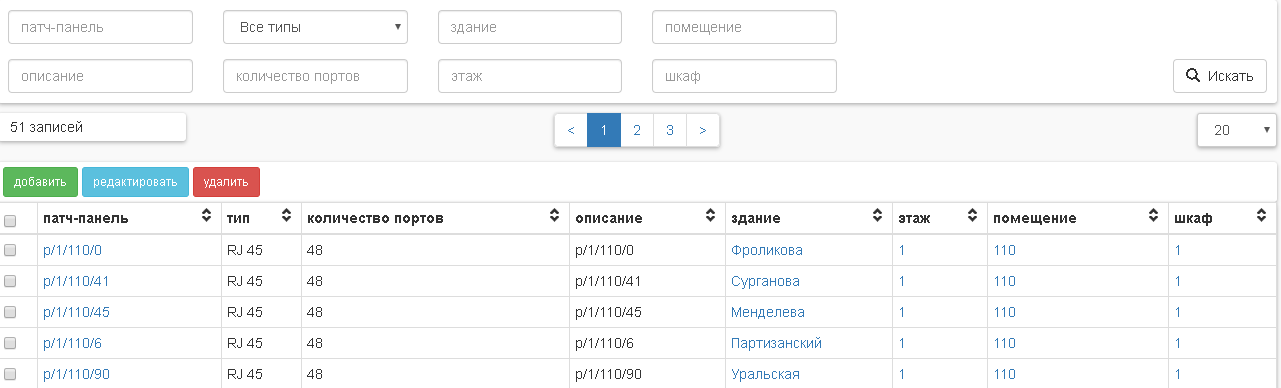
Adding and connecting network device ports
Ports can be added and commuted manually one by one, or massively imported from a csv file.
Ручное добавление
Зайти в пункт меню Коммутация→Порты.
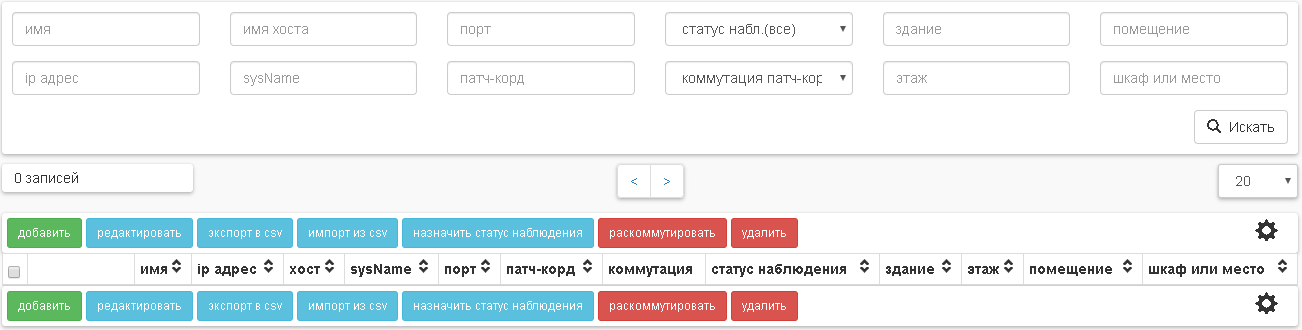
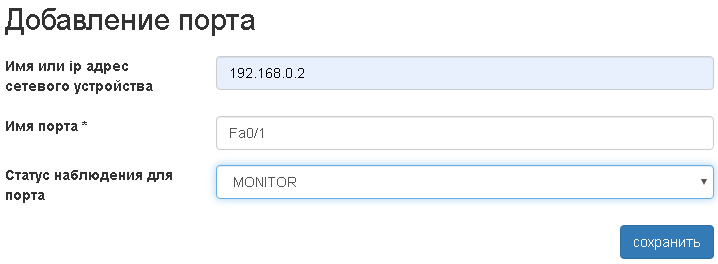
To manually add the port you need to press the add button, fill the fields and press the save button.
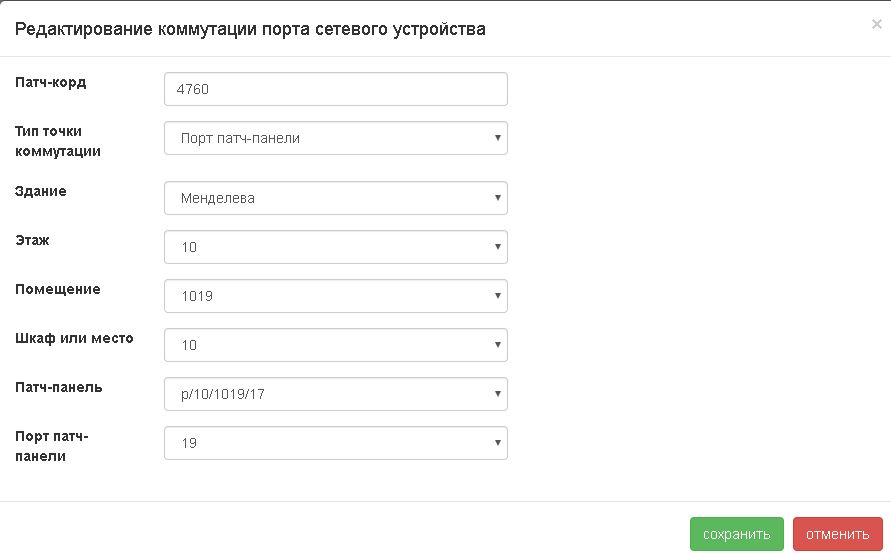
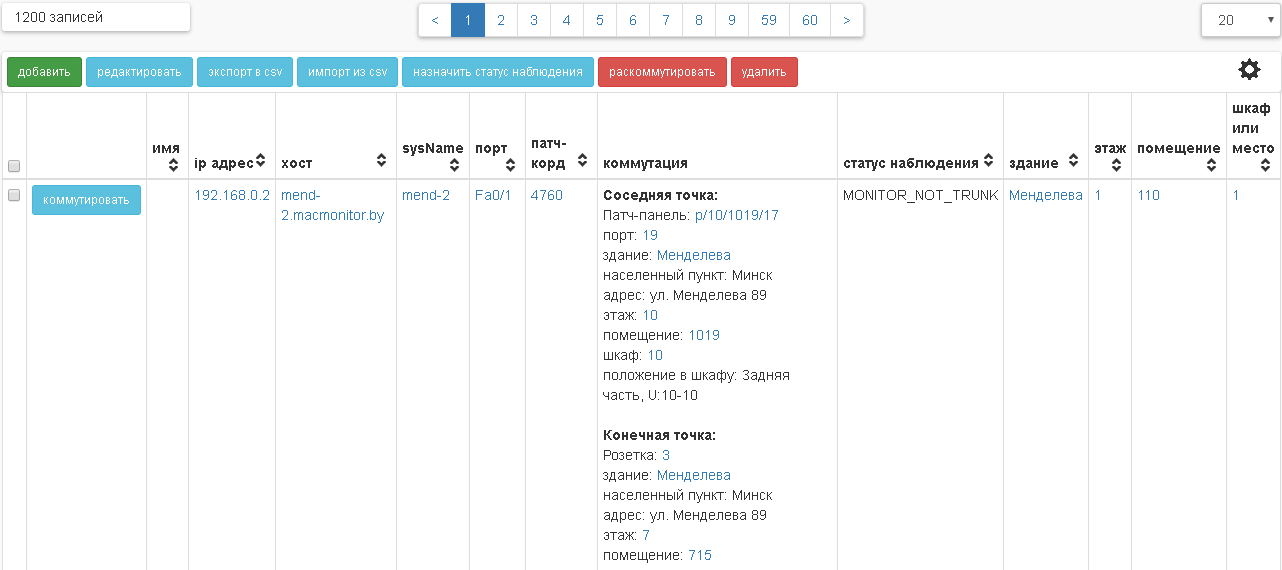
Combine the port with the port of the patch panel, the port of another network device, the socket. To do this, press the commute button in front of the port, then select the switching point and press the save button.
Run points 2-3 for the required number of ports.
Импорт из файла
Зайти в пункт меню Коммутация→Порты.
Нажать кнопку “импорт из csv”.
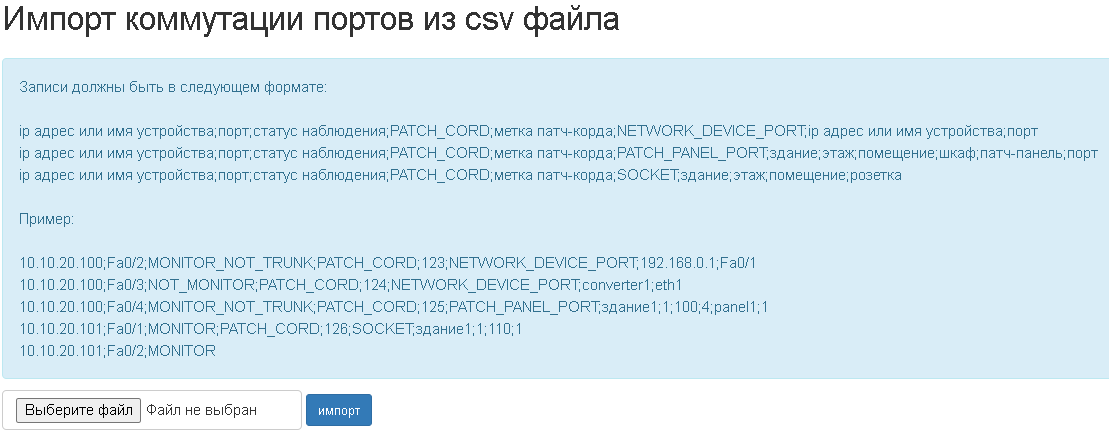
Select the file and press the import button. When you import, non-existent network device ports will be automatically created. Non-existent sockets will be created automatically if there are rooms in which they are located. The ports of patch panels will not be automatically created, so they must be in place in advance.
Коммутация портов патч-панелей
Patch panel ports are created when a patch panel is created and cannot be created separately.
Ports can be lumped up manually one by one, or the switching can be massively imported from a csv file.
Ручная коммутация
Зайти в пункт меню Коммутация→Порты патч-панелей.
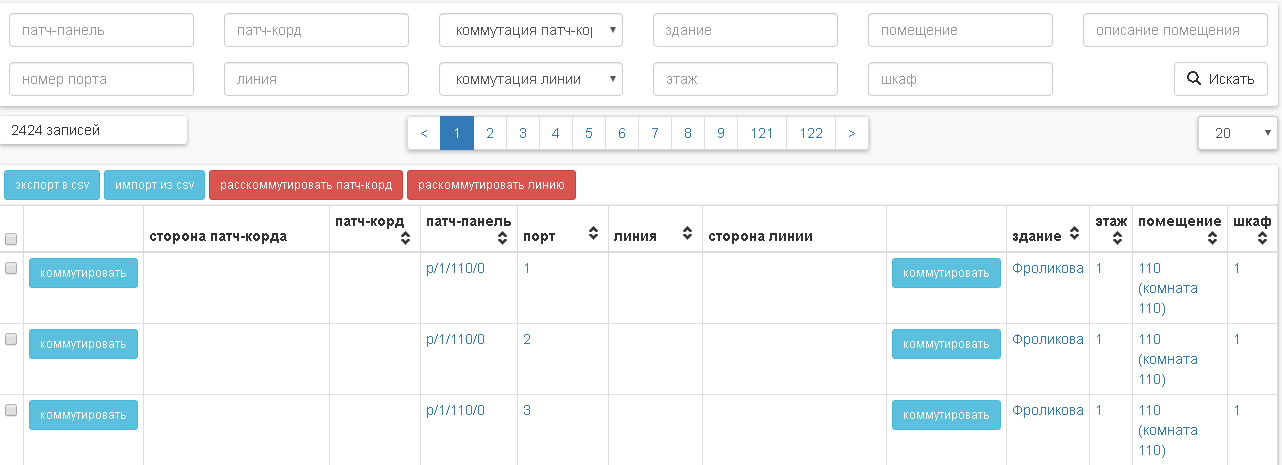
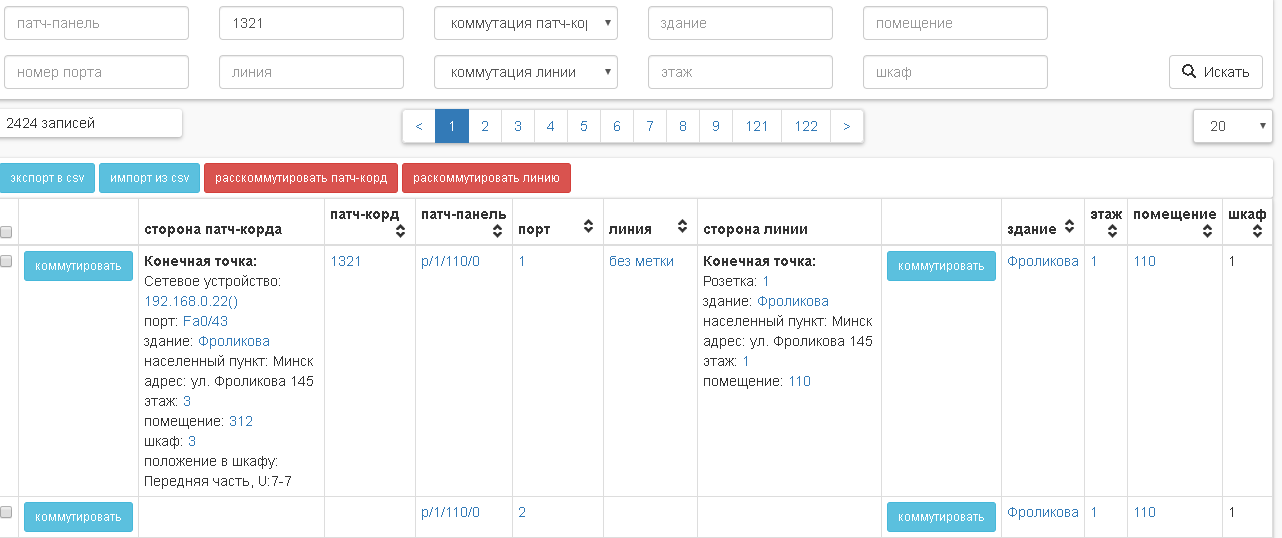
Combine the port with another patch-panel port, a network device port, an outlet. To do this, press the commute button in front of the port, then select the switching point and press the save button. You can commute the port, both from the side of the line and from the patch-cord side. The patch cord differs from the line by the presence of connectors at the ends of the cable.
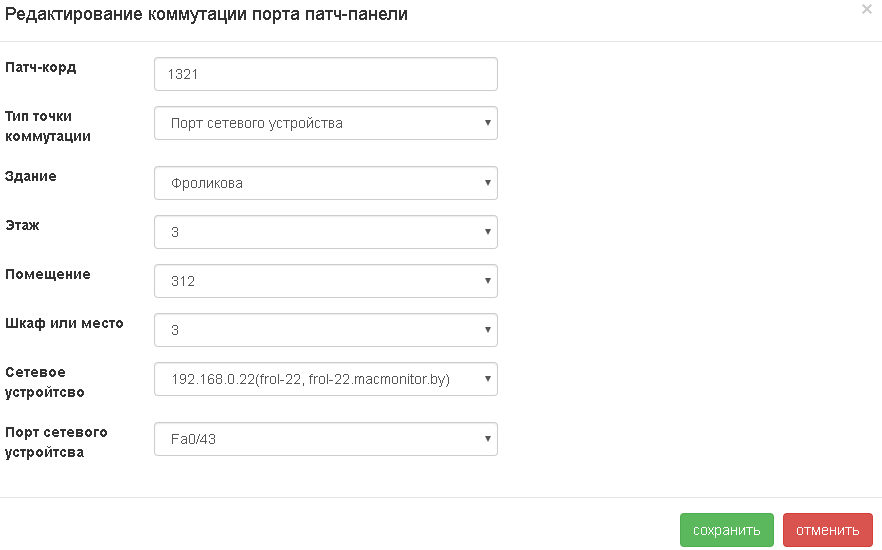
Run points 1-2 for the required number of ports.
Импорт коммутации из файла
Зайти в пункт меню Коммутация→Порты патч-панелей.
Нажать кнопку “импорт из csv”.
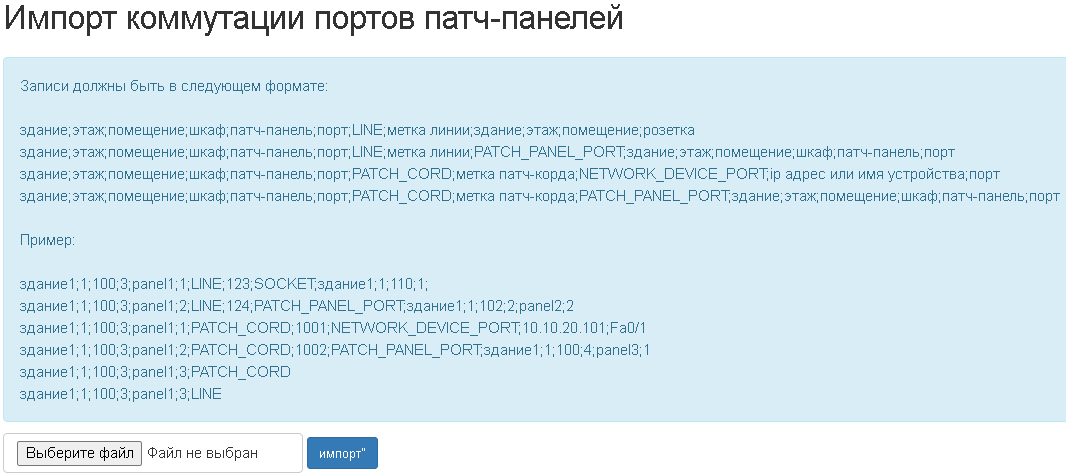
Select the file and press the import button. When you import, non-existent network device ports will be automatically created. Non-existent sockets will be created automatically if there are rooms in which they are located. The ports of patch panels will not be automatically created, so they must be in place in advance.
Добавление и коммутация розеток
Outlets can be added and commuted manually by one, or massively imported from a csv file.
Ручное добавление
Outlets can be added one at a time or en masse. To mass-add outlets, you need to go to the Places. Click on the right room. Click “add sockets en masse,” fill the fields and push save.
Добавление и коммутация одной розетки
Зайти в пункт меню Коммутация→Розетки.
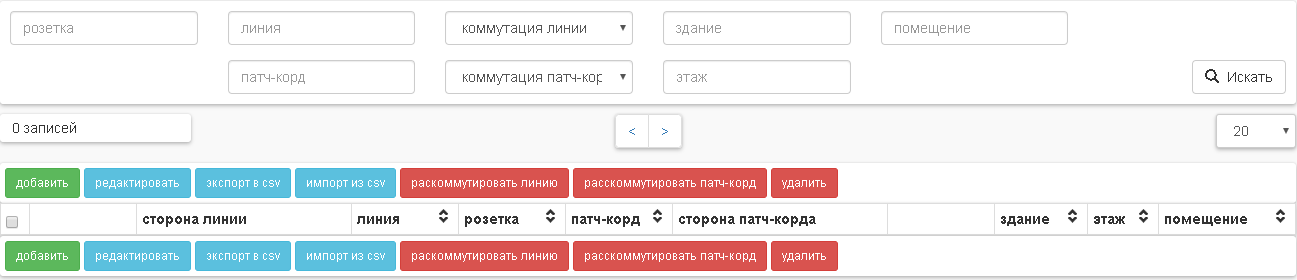
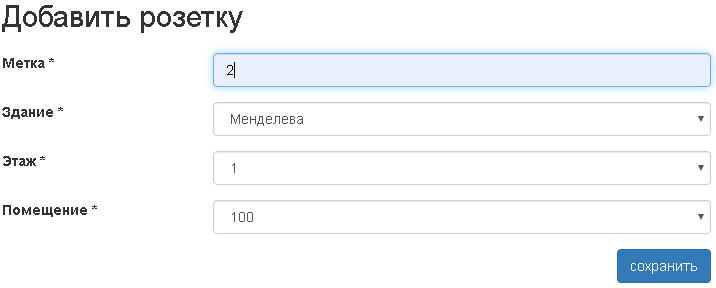
To manually add the outlet you need to press the add button, fill the fields and press the save button.
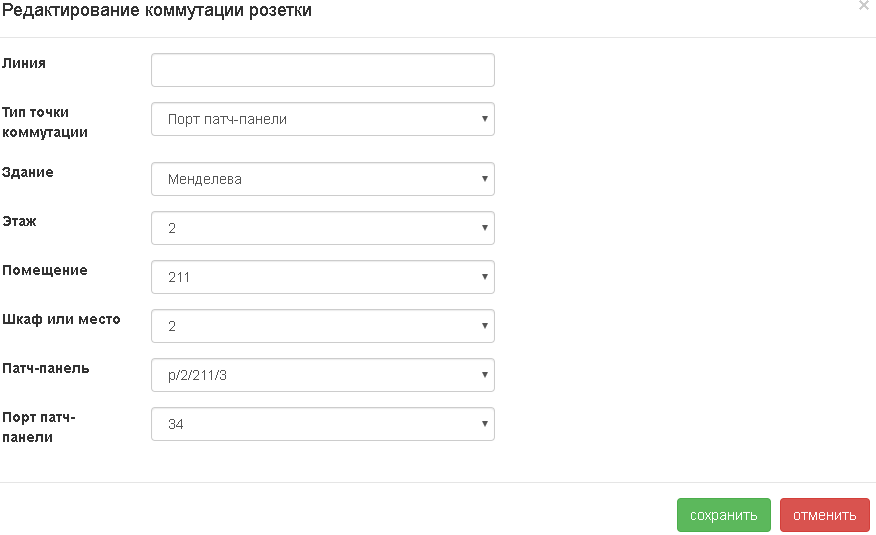
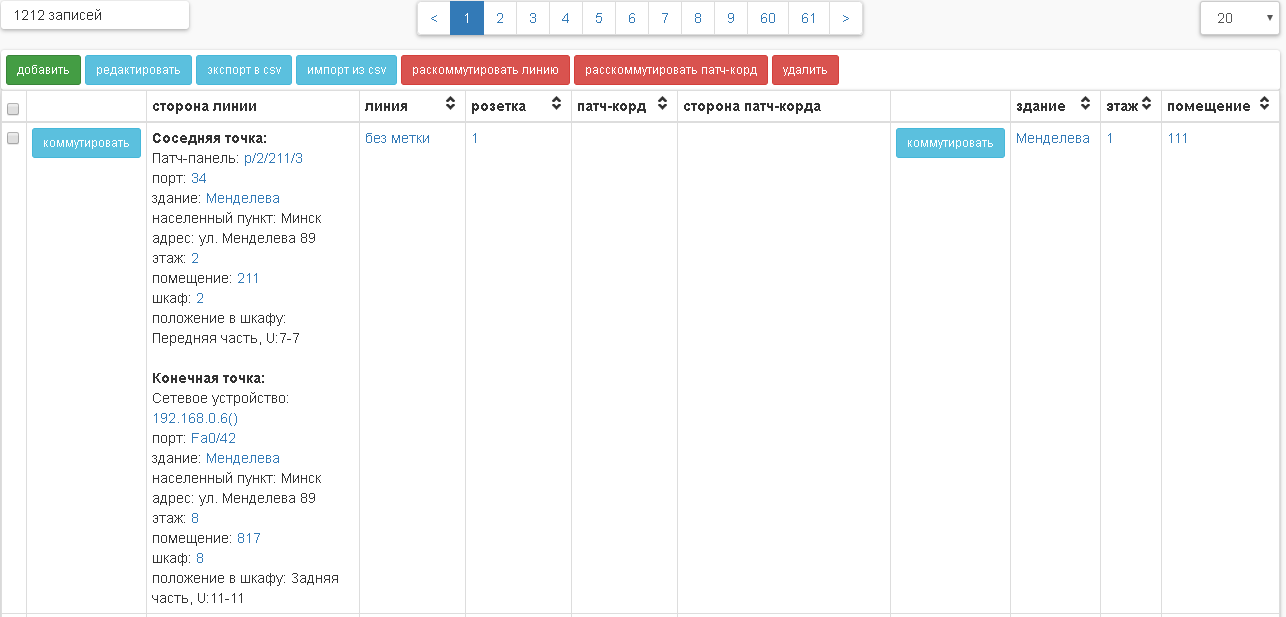
Combine the socket with the patch-panel port, the power port of the network device. To do this, press the commute button in front of the port, then select the switching point and press the save button. You can make a commuting socket, both from the side of the line, and from the side of the patch-cord. The patch cord differs from the line by the presence of connectors at the ends of the cable.
Run points 2-3 for the required amount of sockets.
“Import from the file”
Зайти в пункт меню Коммутация→Розетки.
Нажать кнопку “импорт из csv”.
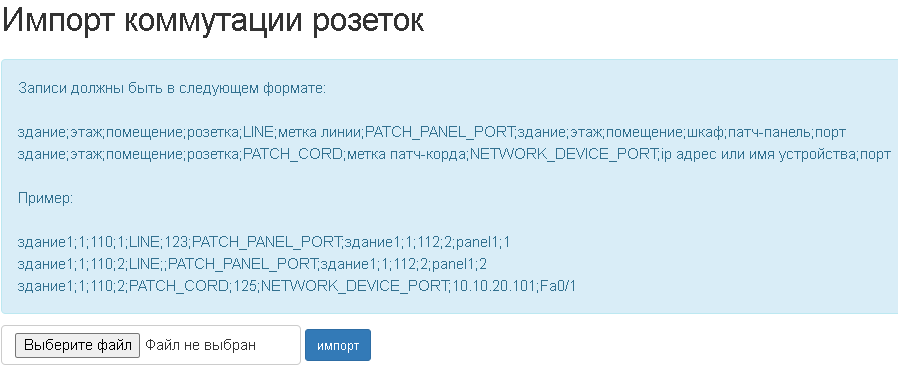
Select the file and press the import button. When you import, non-existent network device ports will be automatically created. Non-existent sockets will be created automatically if there are rooms in which they are located. The ports of patch panels will not be automatically created, so they must be in place in advance.