Adding seats
Добавление зданий
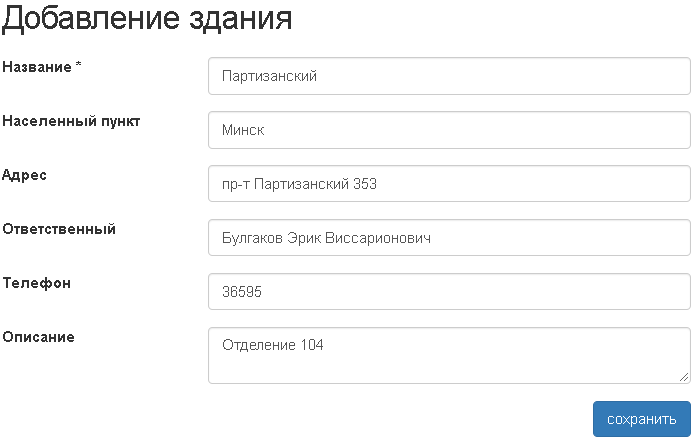
- Зайти в пункт меню Места→Здания.

- Press the add button. Fill the Fields Title, Township, Address, Responsible, Phone, Description and click save.
- Название
- Название здания.
- Населенный пункт
- Населенный пункт.
- Адрес
- Адрес.
- Ответственный
- The employee is responsible for the equipment in the building.
- Телефон
- The phone is responsible.
- Описание
- Описание.
- Complete paragraph 2 for the required number of buildings.

Добавление этажей
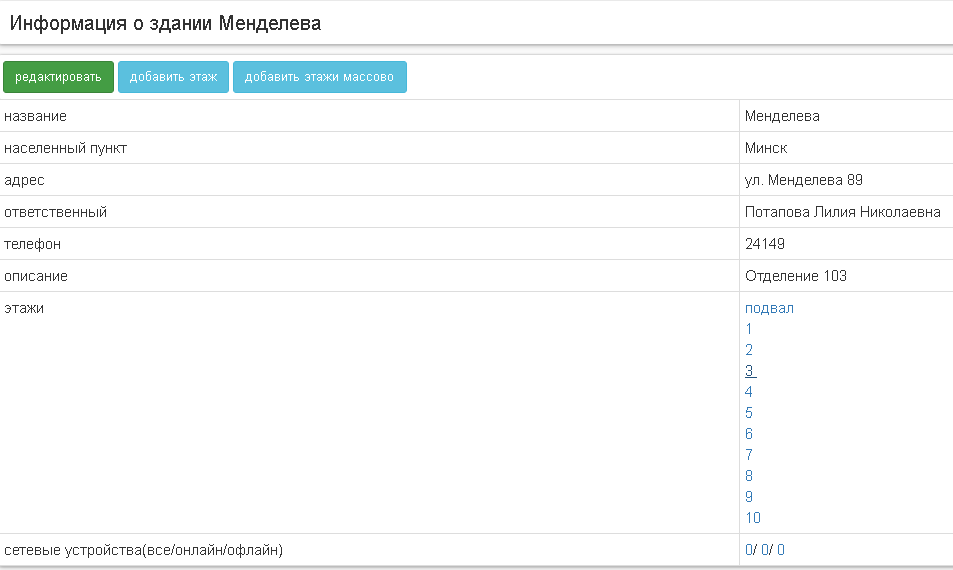
- Зайти в пункт меню Места→Здания.
- Click on the building where you need to add floors.

- Click “add floors en masse” and fill the Floors and Description fields and press the save button.

- Complete paragraph 3 for the required number of buildings.
Добавление помещений
- Visit the Place’s Menu.

- Click on the Floor, where you need to add rooms.

- Click “add space en masse” and fill the fields of the names of the premises and description and press the save button.


- Run paragraph 3 for the required number of floors.
Добавление шкафов
- Visit the Commutation menu item.

- Click on the room in which you need to add cabinets.

- Press the “add cabinets en masse” button and fill the box cabinets, height in units and description and press the save button.


- Complete paragraph 3 for the required number of buildings.
Adding seats
If there are network devices that are not in the cupboards, they can be placed in “places.”
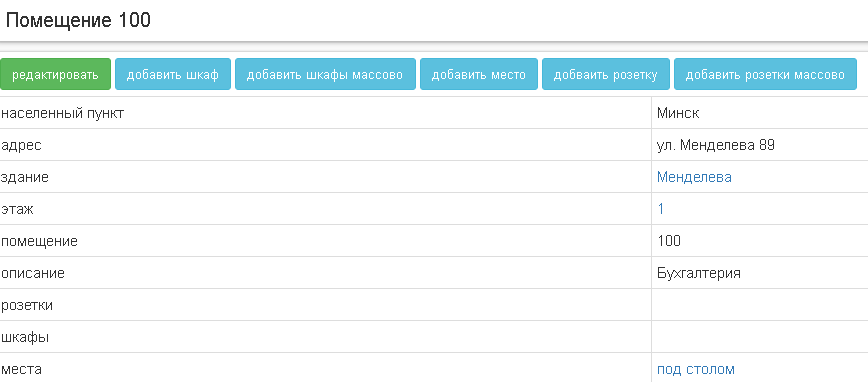
- Visit the Commutation menu item.
- Кликнуть на Помещение, в которое нужно добавить места.
- Click the “add space” button and fill in the field ID and description and press the save button.

- Run paragraph 3 for the required number of seats.